Sign up to first listing.
About 20 minutes.
Your account, your eBay business policies, and the settings that make listings look like yours. Written for eBay Australia; UK, US and Canada work the same way.
Before you start
Get these ready first
An eBay account that’s registered to sell
eBay asks for your name, address, date of birth, photo ID and a bank account for payouts. In Australia it must be a transaction account (not a savings account) in your own name. Verification can take 1 to 3 days, so start here. eBay seller registration
A few cards to test with
Your phone camera is fine. Start with 10 to 20 cards so you see the whole flow before a big stack.
Part 1
Create your bulkcard account
Sign up with your email
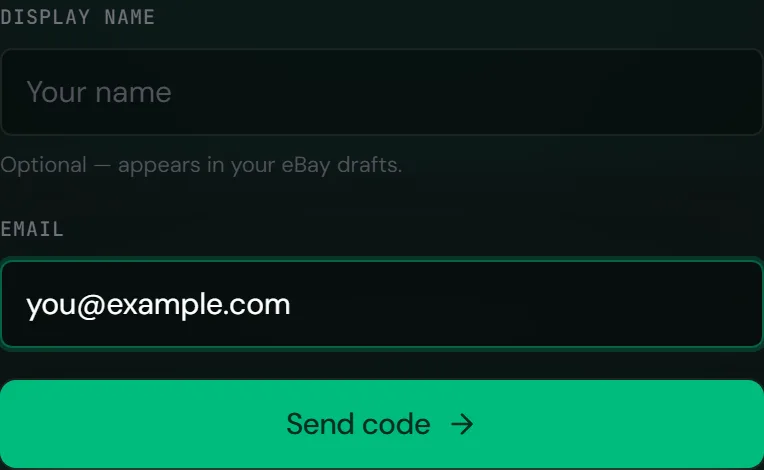
There’s no password. Enter your email, press Send code, then type in the code we email you. Codes last 1 hour. The display name is optional and appears in your eBay drafts.
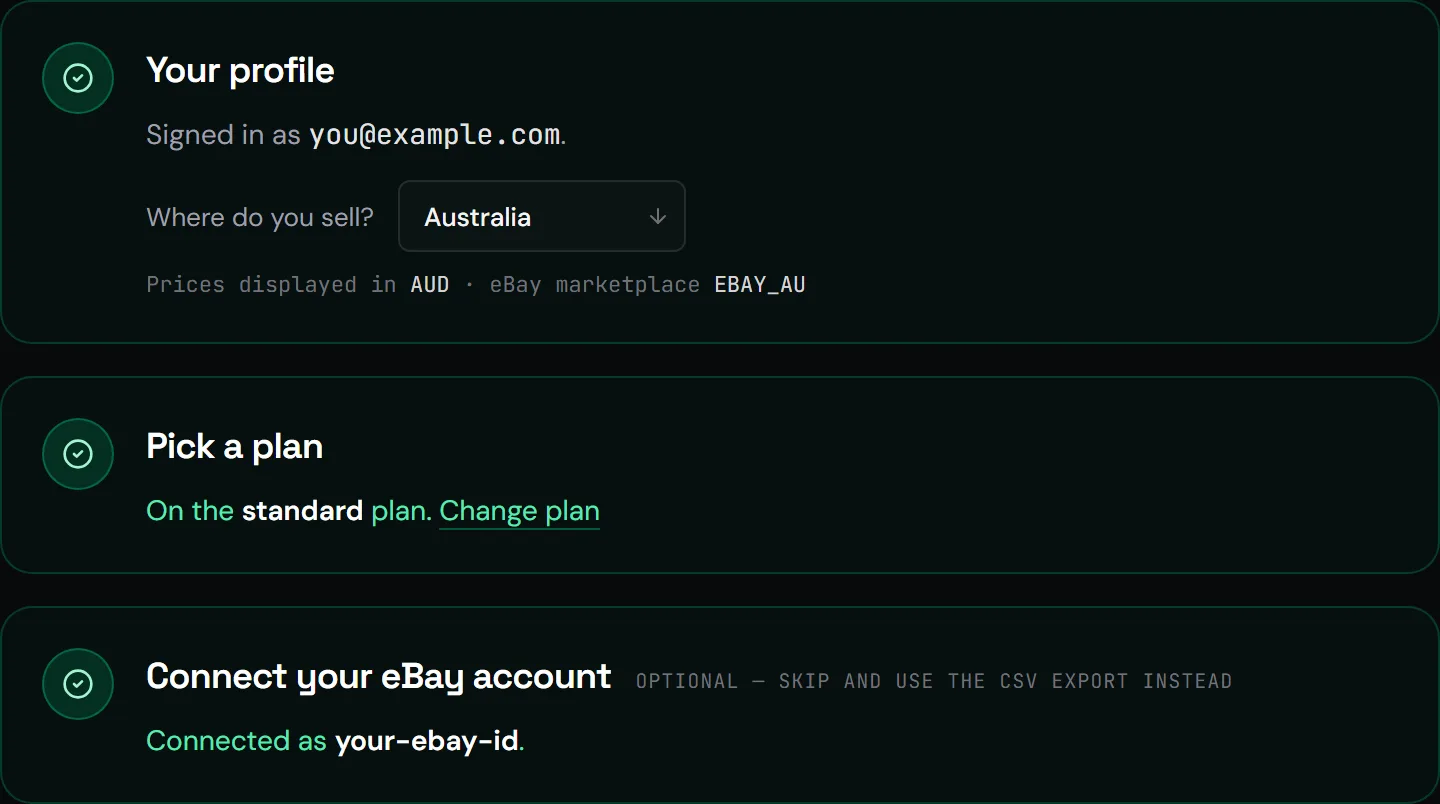
Tell us where you sell, pick a plan, connect eBay
Where do you sell? decides which eBay site you list on: eBay AU, UK, US or Canada. The Free Trial gives you 10 scans and exports a CSV you upload to eBay yourself; paid plans publish straight to eBay. Connect eBay signs you in on eBay’s own page, so bulkcard never sees your eBay password.
Part 2
Set up your eBay business policies
eBay needs three policies on every listing: payment, postage and returns. You create them once on eBay, then bulkcard attaches them to every card you publish. These steps happen on eBay’s website. Want a picture of every screen? Follow the illustrated business policies guide.
eBay Australia is changing this on 1 December 2026. eBay says business policies will only be available to Pro sellers from that date. We’re confirming which eBay plan bulkcard sellers will need and will post it in the Discord #announcements channel. Set your policies up now either way.
Turn on business policies
Opt in at ebay.com.au/bp/policyoptin. Policies belong to one eBay site: AU policies don’t carry over to eBay UK or US.
Create a payment policy
In My eBay, go to Account → Business policies → Create policy → Payment. Name it something you’ll recognise, like “Pay now”, and tick Require immediate payment with Buy It Now.
Create two postage policies
One for cheap singles: Australia Post Domestic Regular Letter Untracked, one of the few services eBay lets you send without tracking. One tracked policy for anything valuable, which protects you against “item not received” claims. Set handling time to 1 business day, and turn on combined postage so a buyer who grabs five cards pays postage once.
Create a return policy
Choose 30 days or no returns. Even with no returns, eBay’s Money Back Guarantee still covers buyers when a card isn’t as described, and business sellers have Australian Consumer Law obligations. Many card sellers offer 30 days because buyers trust it.
Part 3
Finish your eBay settings in bulkcard
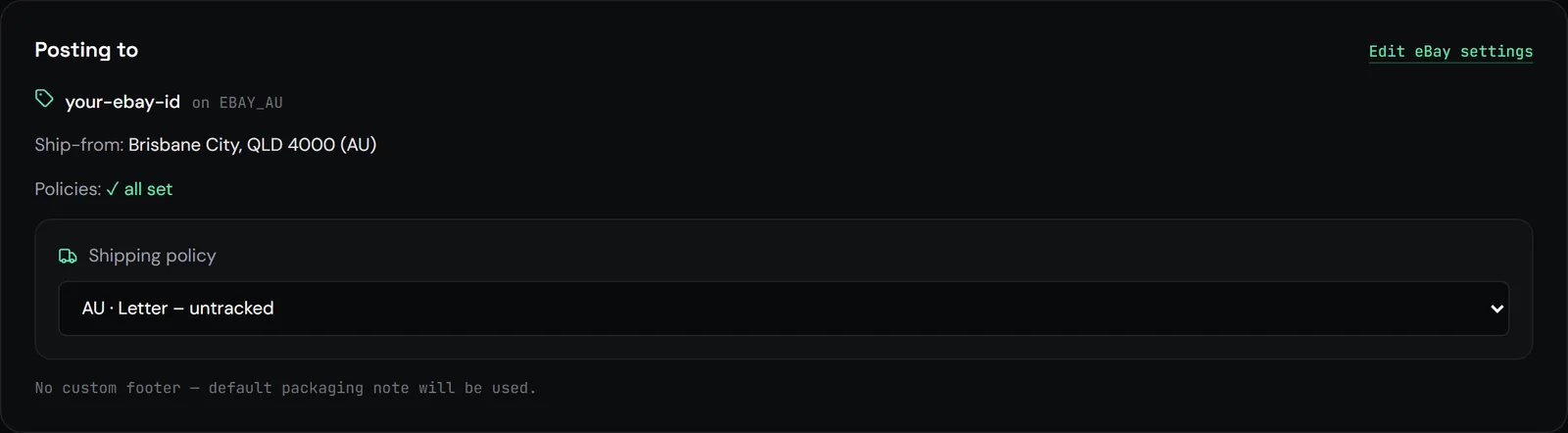
Open Settings → eBay account. Your policies load from eBay each time the page opens.
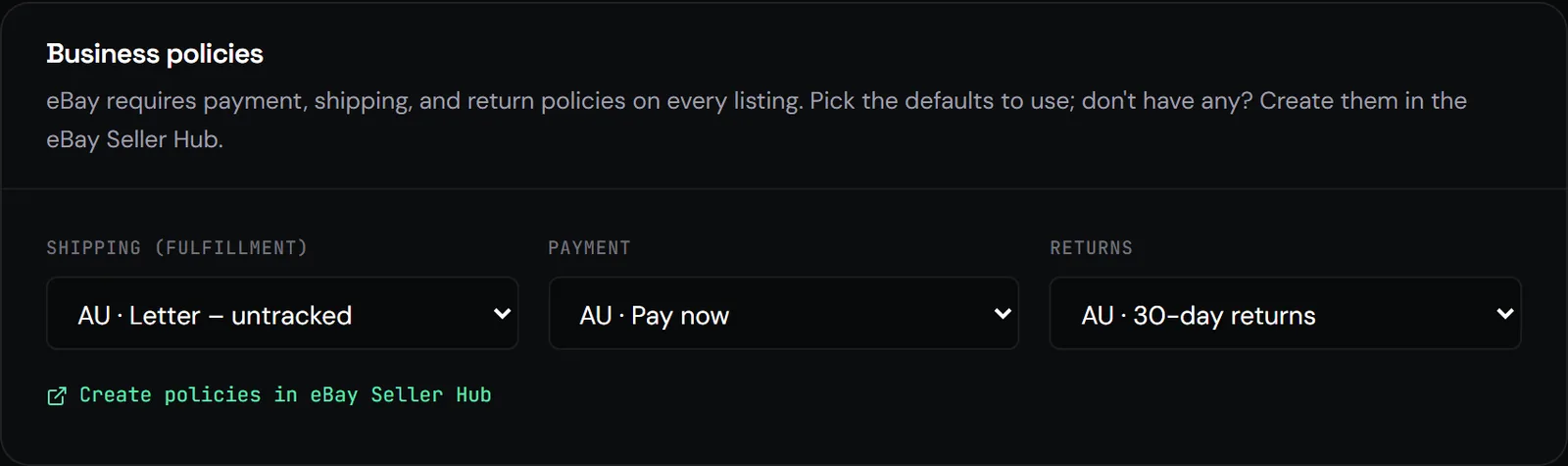
Pick your three default policies
Each option starts with its eBay site, like AU · Pay now. Check the site matches yours: when you first connect, bulkcard picks a policy for you and can grab a US one eBay created. If you see a warning about another site, switch to your AU policy.
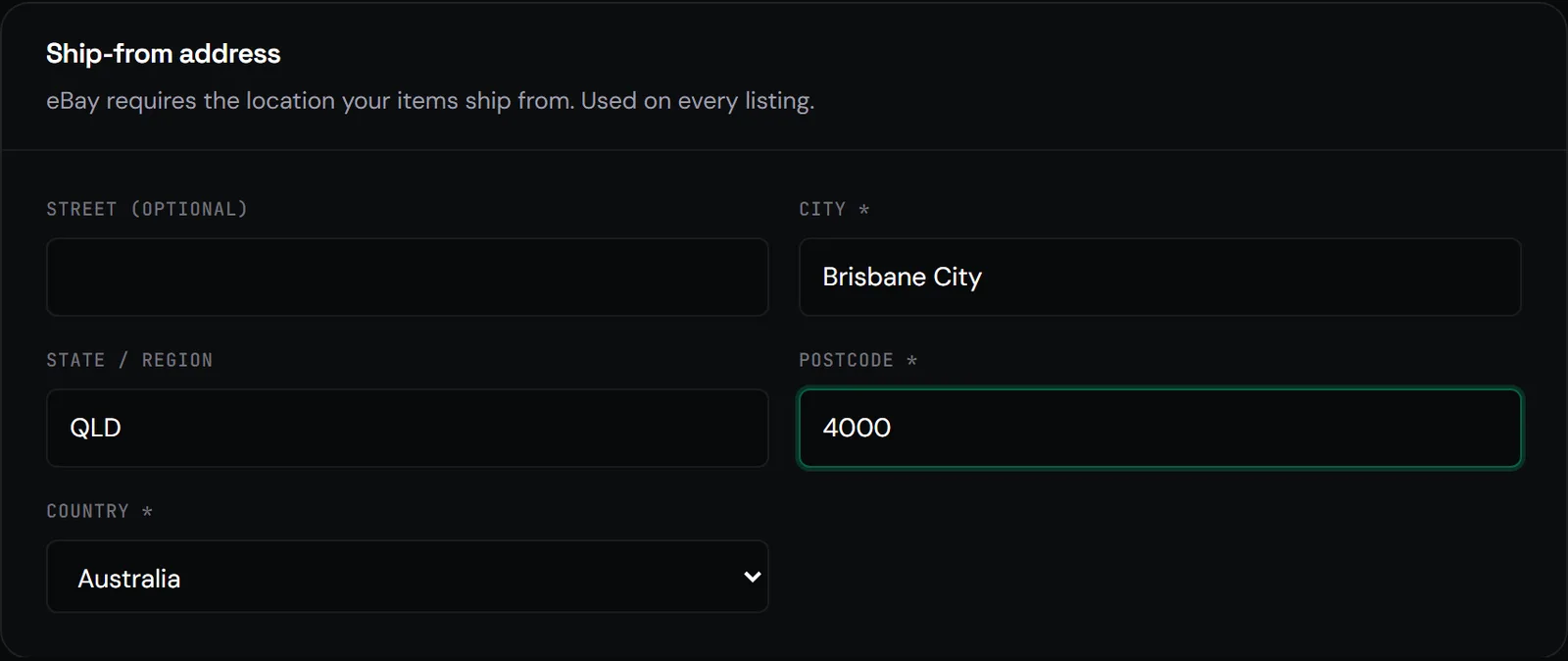
Add your ship-from address
City, postcode and country are required. Use your suburb’s real postcode: eBay rejects PO Box-only postcodes (like 4001 or 2001) and PO Box street lines.
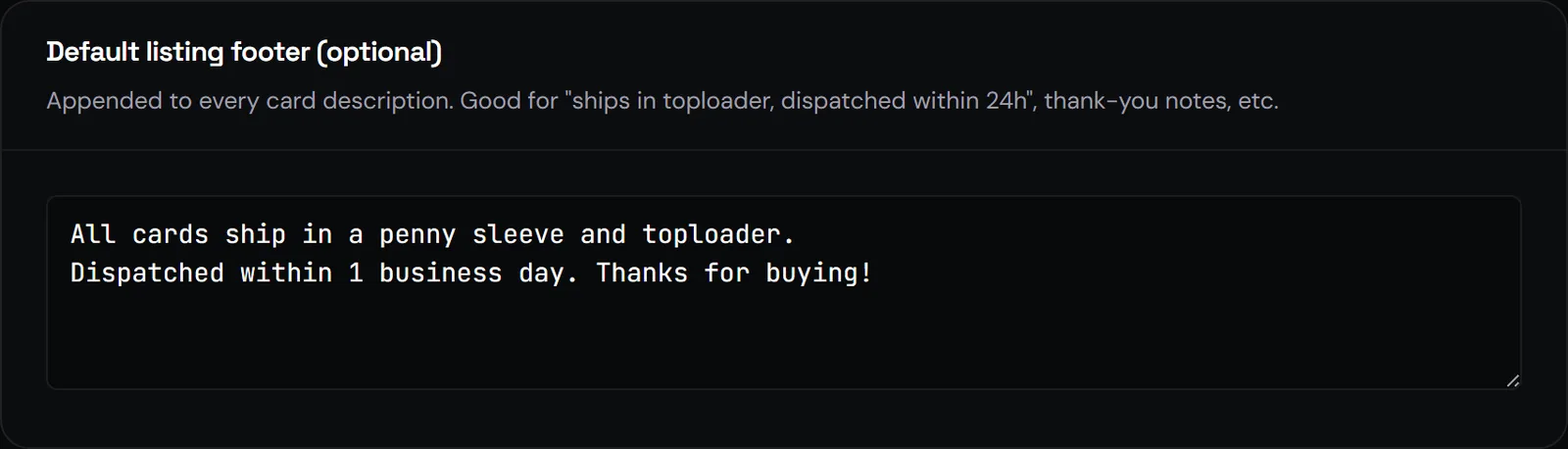
Add a listing footer, then save
The optional footer is added to every card description, which suits your postage times or a thank-you note. Press Save eBay settings; the Policies and Ship-from badges turn green when you’re ready to publish.
Part 4
Make your listings yours
Optional, and the defaults work well. Ten minutes here saves editing later.
Titles: Settings → Listing templates
Titles are built from placeholders. Keep
{{variant}}: without it “Holo” and “Reverse Holo” drop out of your titles. eBay titles max out at 80 characters, so long titles drop the condition first, then the rarity.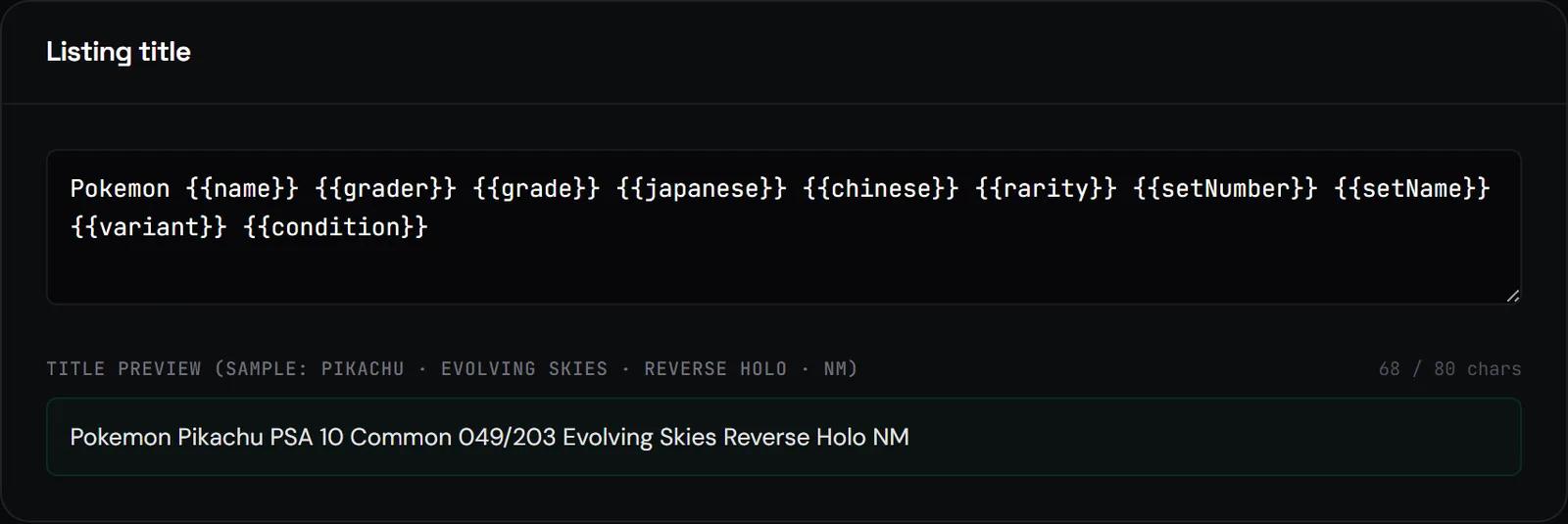
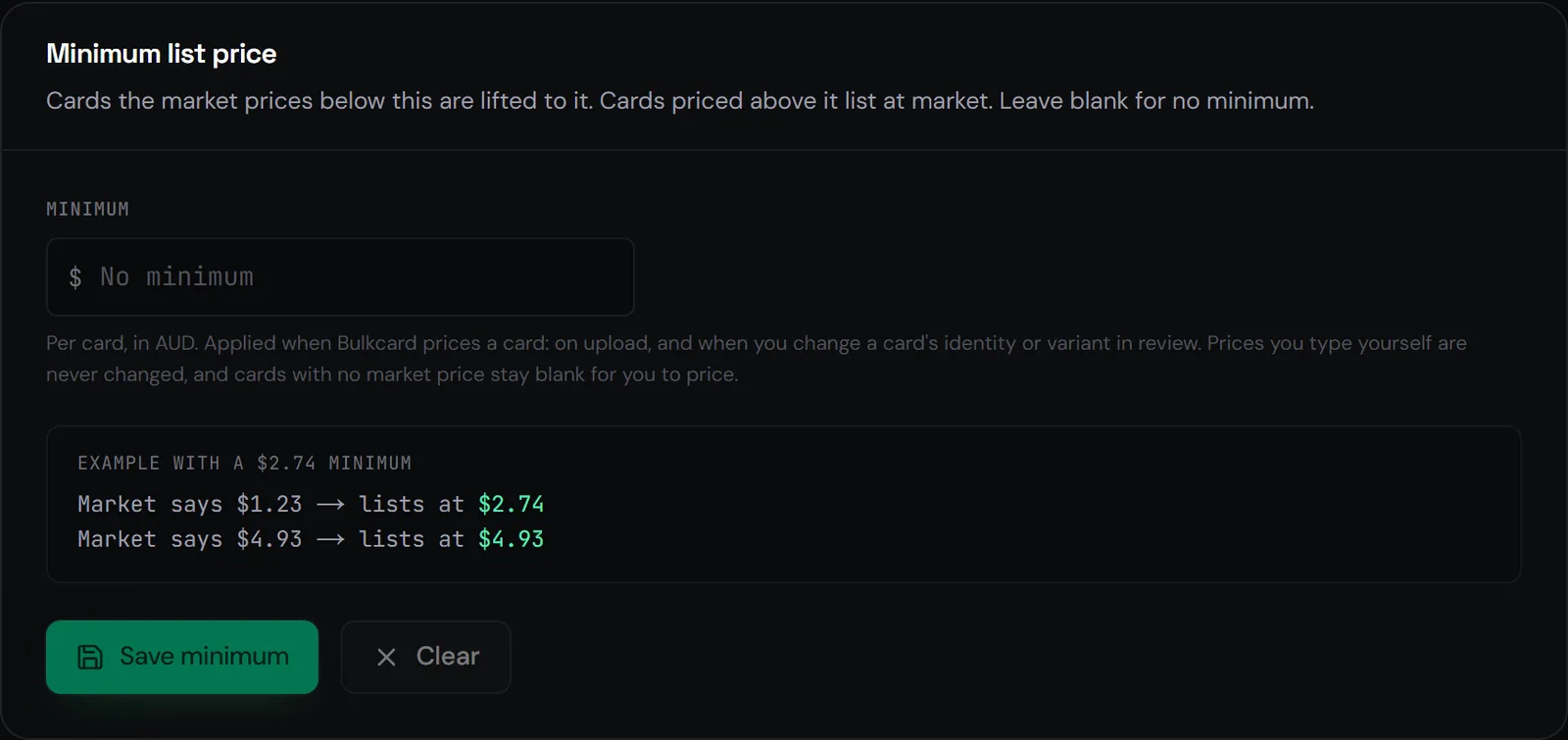
Prices: Settings → Pricing
Set a Minimum list price so nothing goes up for less than it’s worth posting. Prices you type yourself are never changed. eBay’s own minimum is A$1.00 (£0.99, US$0.99, C$0.99).
Listing profiles: multi-variation listings only
A multi-variation listing is one eBay listing where buyers pick their card from a dropdown, which suits bulk commons. A listing profile saves the policies, store category and description for those batches. On eBay Australia they need an eBay Pro seller plan.
Part 5
Your first batch
Pick the game and one language
Press New batch and choose Pokémon, One Piece or Disney Lorcana. Cards are only matched against the language you pick, so keep Japanese and English in separate batches.

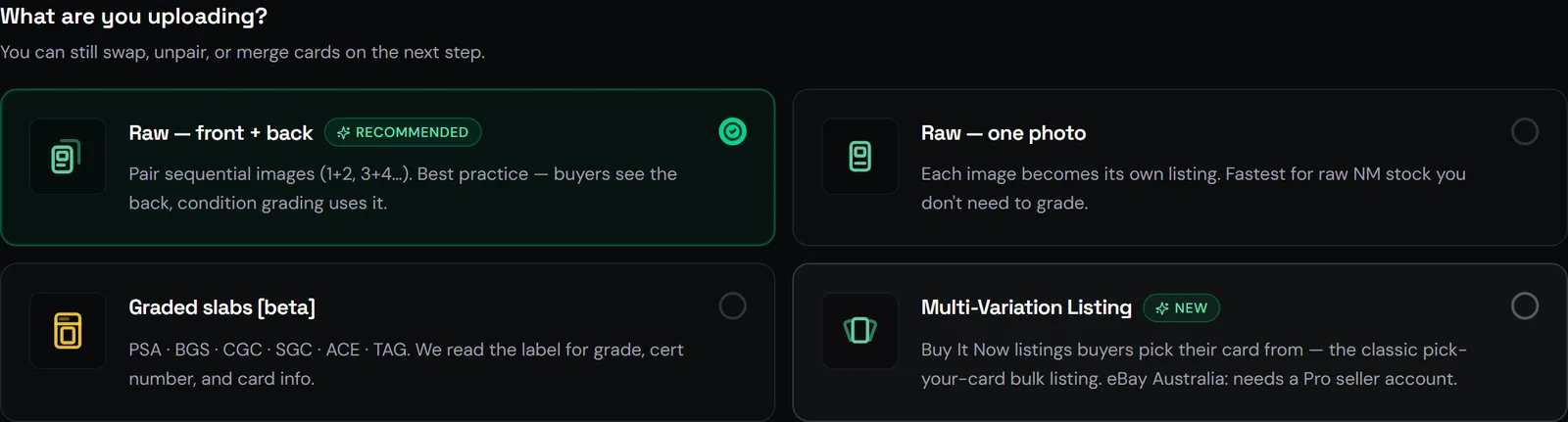
Add front and back photos
Choose Raw — front + back. Shoot front, back, then the next card’s front: photos pair up 1+2, 3+4. If a pair comes out backwards, use Swap front/back. Name the batch: the name starts every SKU.
Review, then publish
Check each match and price. Pick the correct card shows the next-best matches. On the publish screen, choose the shipping policy for this batch (letters for commons, tracked for hits). Free plan? Use Export CSV and upload it in eBay Seller Hub under Reports → Uploads.
Worth knowing
Tips and tricks
- Even light beats a better camera. Keep glare off the name and number, and keep the bottom corners in frame: that’s where the set code and card number live.
- Keep your phone awake while uploading. Switching apps or locking the screen stops the upload; use Resume upload if one stalls.
- Up to 500 cards per batch. Bigger uploads split into consecutive batches and SKUs keep counting.
- Failed identifications and cards you remove before publishing don’t use a scan.
- New eBay accounts have a monthly selling limit. See it, and request more, in Seller Hub under Overview.
- Renamed a policy on eBay? Open Settings → eBay account and pick it again.
Troubleshooting
When something goes wrong
- Business policies not selected
- Pick all three in Settings → eBay account (Part 3).
- Ship-from address not configured
- Add city, postcode and country in Settings → eBay account.
- Finish setting up selling on eBay
- eBay still needs your payout or ID details. Finish registration, then publish again.
- Price is below eBay’s minimum
- Raise it to at least A$1.00, or set a minimum list price.
- eBay had a temporary fault
- Set the card back to Ready and publish again.
- Monthly listing limit reached
- That’s eBay’s cap on your account. Request an increase in Seller Hub.
Still stuck? Ask in the bulkcard Discord (open a private ticket for account questions) or email hello@bulkcard.com.au.